

Get Started: Use Antradus AI Lite Free with an OpenRouter API Key
Imagine opening a WordPress post and having a complete, SEO-ready article written for you in under a minute — at no extra cost. That is exactly the promise you can deliver on by pairing Antradus AI Lite with a free OpenRouter API key.
Why use Antradus AI Lite with OpenRouter?
Antradus AI Lite integrates seamlessly into the WordPress editor and can create full articles, SEO meta titles, meta descriptions, and matching images without leaving your dashboard. Choosing OpenRouter as the AI provider unlocks two key benefits: access to dozens of models (including free tiers) and flexibility to switch models as your needs change. For budget-conscious site owners, this combination is powerful and pragmatic.
Quick overview of what you can do for free
You can generate article drafts, concise SEO meta titles and descriptions, and one-click featured images using OpenRouter models that offer free access. Free models commonly available through OpenRouter include experimental versions of Google Gemini Flash and community Llama and Mistral derivatives. These models are suitable for many editorial tasks and image generation workflows.
Step-by-step: Create an OpenRouter account and get your API key
- Visit openrouter.ai and sign up for a free account using email or GitHub. The signup is straightforward and designed for developers and creators.
- Verify your account according to the instructions sent to your email. This activates access to the dashboard where API keys are managed.
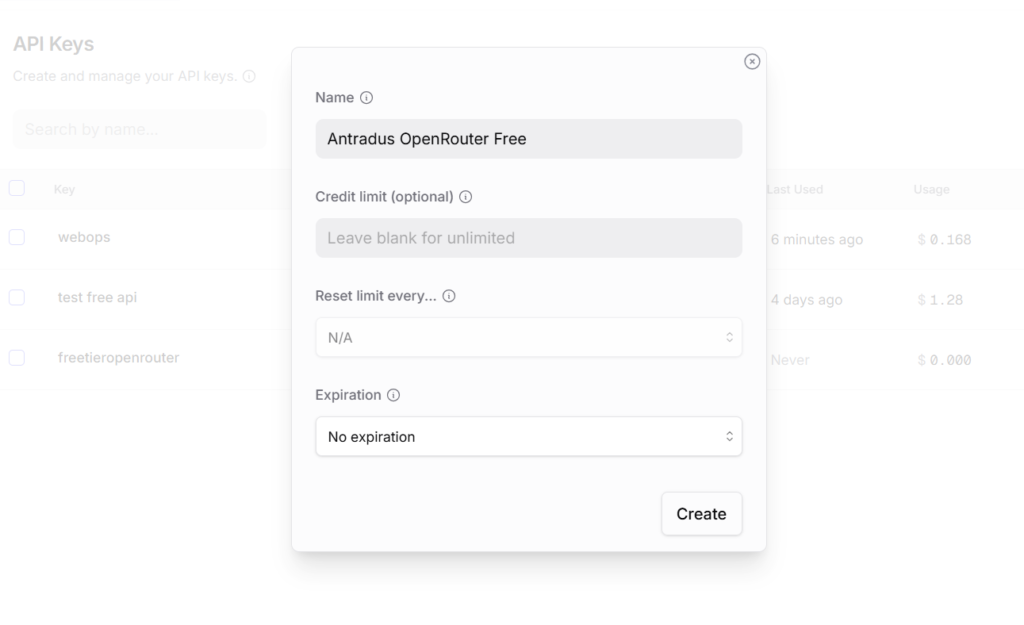
- In the OpenRouter dashboard, find the API Keys or Tokens section and create a new key. Give it a descriptive name like “Antradus-WP-Key” so you remember its use.
- Copy the API key to your clipboard. Treat it like a password: do not share it publicly or commit it into version control.
Install and configure Antradus AI Lite in WordPress
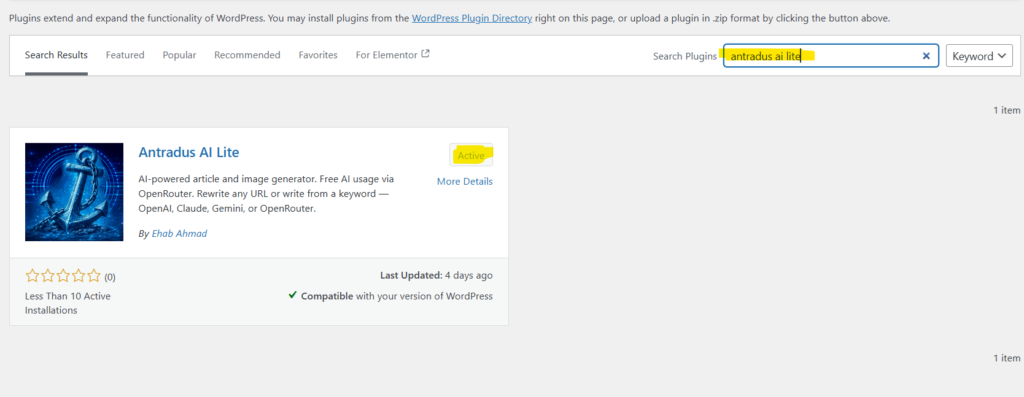
- Install the plugin by uploading the antradus-ai-lite folder to /wp-content/plugins/ or search and install from Plugins > Add New inside WordPress.
- Activate Antradus AI Lite from the Plugins screen.
- Navigate to Settings > Antradus AI in your WordPress admin area.
- Select OpenRouter as your provider. Paste the OpenRouter API key you created into the API key field and save settings.
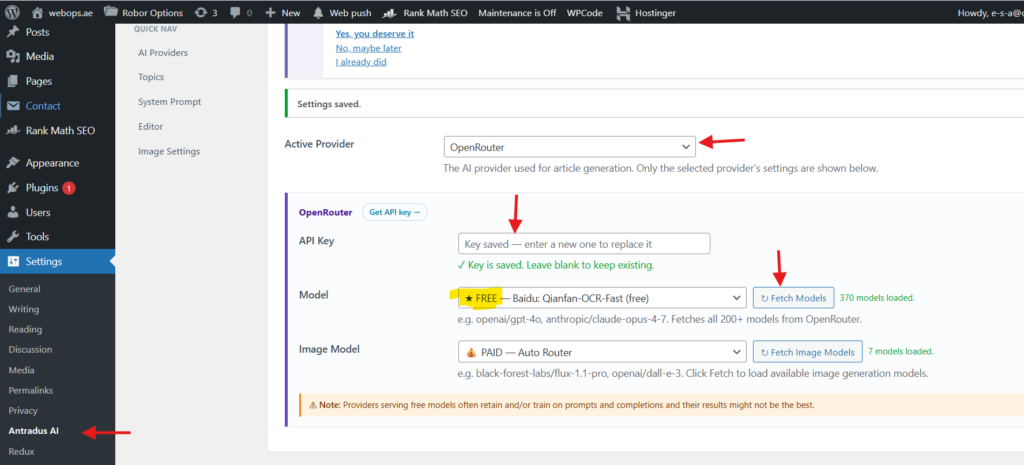
- From the same settings area choose a default model. If you want to stay free, pick one of the models labeled free or experimental, such as Gemini Flash Experimental or a free Llama/Mistral build.
Generate your first article inside the editor
- Open any post or page. You will see the Antradus AI meta box inside the Classic Editor or the Block Editor (Gutenberg). The plugin detects the editor automatically.
- Enter a clear keyword or a source URL if you want the AI to rewrite a public article.
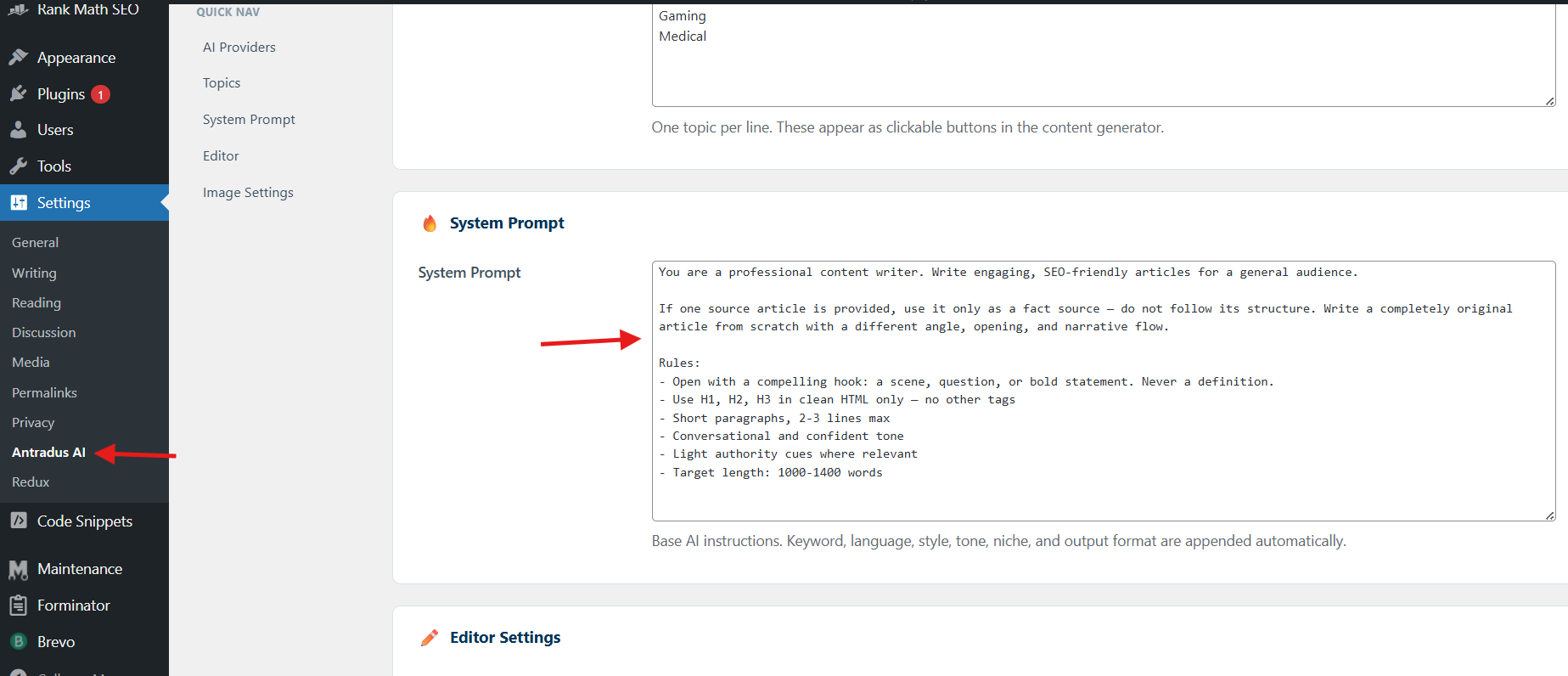
- Pick a writing style and tone from the available presets. You can also set a custom system prompt under Settings to enforce a particular persona or formatting rules.
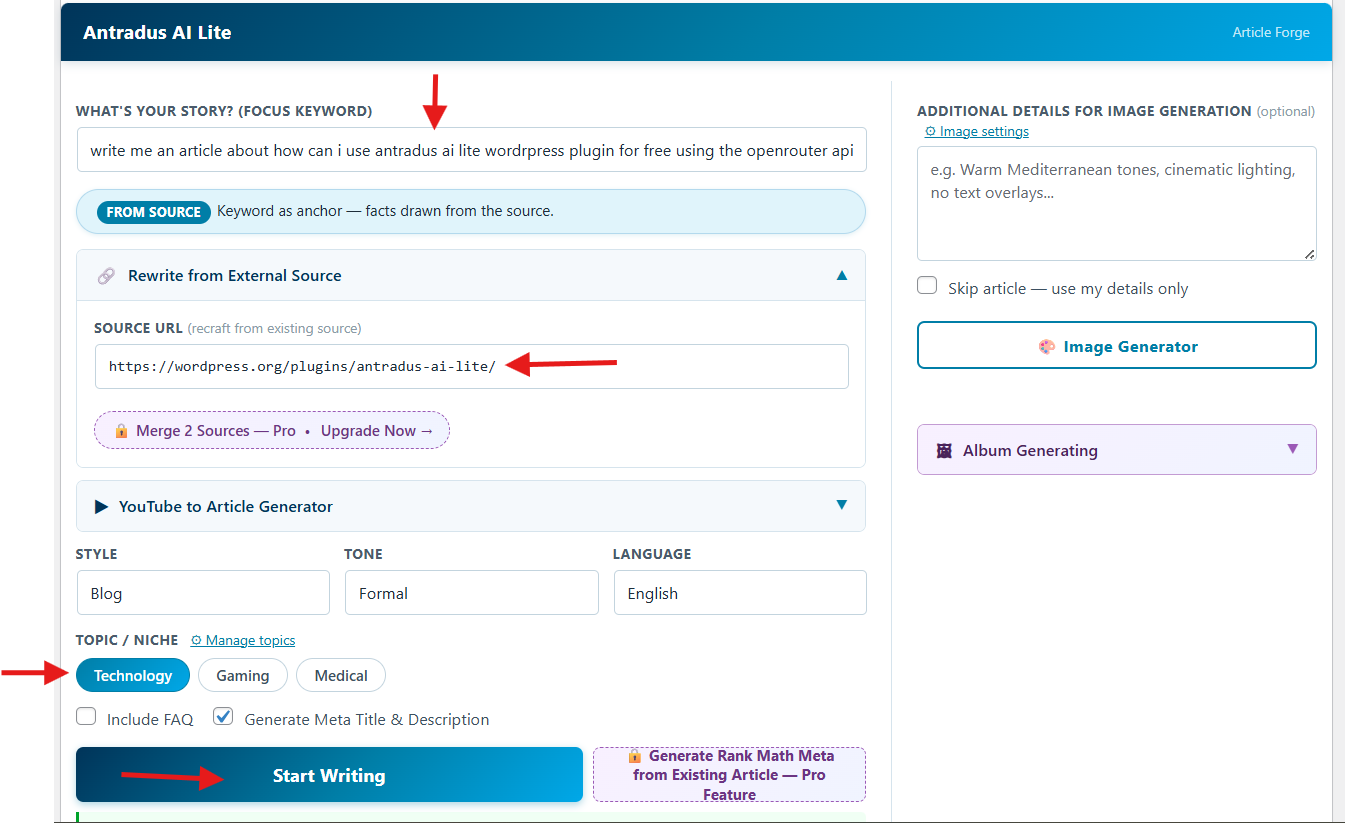
- Click Generate Article. The plugin will request text from the OpenRouter model you selected and bring the content back into the editor along with an SEO meta title and meta description.
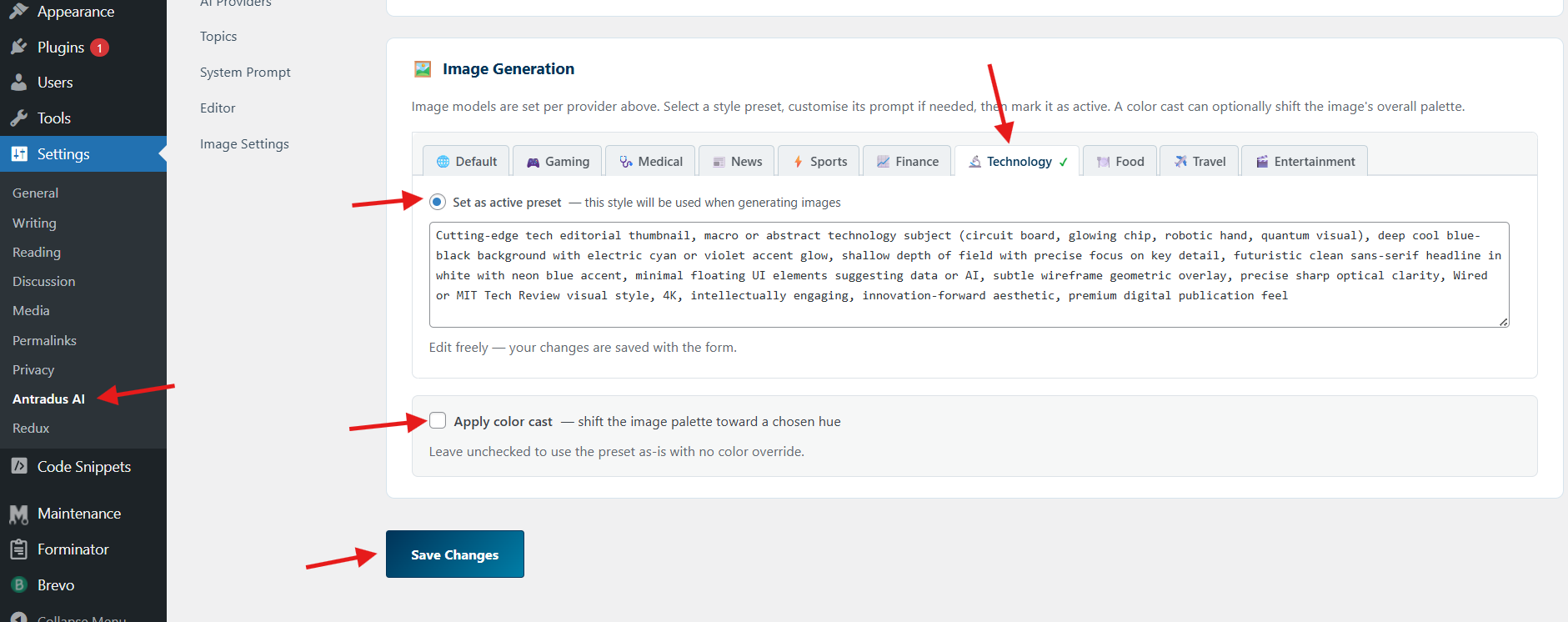
- To create an image, use the Image tab and pick a visual style preset. Click Generate Image and then Use as Featured Image to upload it directly to your Media Library. You can also choose your favoutite color so the image generated will be casted in that color (optional). Image generation is rarely supported for free so best of luck with that!
Please note:
- Free models might offer random information or they might just give you the wrong styling format
- Image generation even on OpenAI might not be supported for free.
- The results generated whether good or bad are the results of the model you choose and your prompt. Antradus AI plugin is your AI userinterface in WordPress.
Important privacy and security considerations
Antradus AI Lite sends only the text and keywords you explicitly request to the selected AI provider. Your API key is stored in your WordPress database and is used only to authenticate requests between your site and OpenRouter. Do not paste your API key in public posts, theme files, or shared snippets. If you suspect a leak, revoke the key from your OpenRouter dashboard and create a replacement. The plugin includes SSRF protection for external URL fetching, reducing the risk when generating content from a remote link. Still, audit any third-party integrations on your site to minimize exposure.
Choosing the right OpenRouter model for your needs
If you want speed and low cost, experimental flash models like Gemini Flash are often a good starting point. They are optimized for fast inference and may be available under OpenRouter’s free tier. For more detailed or creative writing, try community models such as Llama or Mistral variants. Test multiple models and prompt styles to find the balance of tone, coherence, and cost that suits your site. When generating images, select a model compatible with image output via OpenRouter. The plugin lists available image-capable models in the settings so you can pick the one that matches your visual goals.
Troubleshooting common issues
If Generate Article returns an error, check these items first: – Verify the API key is active in your OpenRouter dashboard. – Confirm the model you selected is available and supports the requested capability. – Inspect your site’s PHP version and WordPress version; plugin requirements include PHP 7.4+ and WordPress 5.8+. If images fail to generate, switch to a different image-capable model in OpenRouter settings or confirm that image generation is supported for your chosen model.
Advanced tips to get better output
Set a custom system prompt to enforce brand voice, formatting rules, or SEO preferences. This system prompt applies each time the plugin generates a post so you get consistent copy across pages. Use the topic and niche buttons for quick keyword entry and refine the generated output within the editor. The plugin also offers a FAQ section generator to add structured content quickly. When accuracy matters, always review generated names and facts. Antradus includes AI-powered public figure name correction, but human verification remains best practice.
Limitations and when to consider upgrading
Antradus AI Lite covers most content generation basics, but the Pro version adds features like multi-source article merging, YouTube transcript import, and bulk image album creation. If your site produces high volumes of content or needs complex cross-source synthesis, upgrading to Pro or using paid OpenRouter models may save time and improve output quality.
Get Antradus AI Lite for Free now
Comments are closed